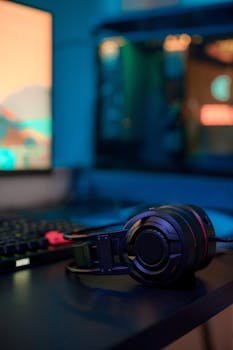
Understanding the Core of Dual-PC Streaming
Streaming with a dual-PC setup offers significant advantages over single-PC configurations, particularly in terms of performance and flexibility. This method separates gaming and broadcasting workloads, optimizing resources for both tasks.
Table of Contents
However, one major challenge is managing audio to prevent echo, which can degrade viewer experience and complicate communication during live streams. Achieving zero echo requires careful planning of hardware connections and software configurations.
Key Components Required for a Seamless Dual-PC Setup
Hardware Essentials
A dual-PC streaming setup is reliant on several core components to function effectively without audio issues. These include two computers, an audio interface or mixer, capture cards, and quality microphones.
Each piece of hardware plays a distinct role in the signal chain, and their selection is critical to achieving a zero-echo environment. The audio interface or mixer is particularly important for managing sound input and output across both systems.
Software Tools and Their Functions
Software solutions are equally essential in managing audio routing and eliminating echo. Applications like OBS Studio, VoiceMeeter Banana, and virtual audio cables help direct audio streams correctly between PCs.
Configuring these tools requires understanding virtual audio routing, noise suppression filters, and advanced audio monitoring settings to maintain synchronized sound without feedback loops.
Setting Up an Echo-Free Audio System
Proper Audio Routing Techniques
Echo commonly arises due to audio feedback loops created when sound from one system is fed back into another. Proper routing isolates audio channels, ensuring microphone sound is sent to the streaming PC without being played back through speakers connected to the gaming PC.
Utilizing an audio mixer or interface allows for direct headphone monitoring without speaker output, eliminating the risk of unintentional audio capture and echo during the broadcast.
Using VoiceMeeter Banana for Audio Management
VoiceMeeter Banana is a versatile virtual mixer that can control multiple audio devices and redirect streams efficiently. Setting it up between the gaming and streaming PCs provides granular control over which audio signals are transmitted.
This setup involves configuring hardware input/output and virtual inputs/outputs to maintain separate streams for game audio, microphone inputs, and system sounds, preventing overlapping audio that causes echo.
Step-by-Step VoiceMeeter Configuration
First, install VoiceMeeter Banana on the streaming PC and designate hardware inputs for microphones and gaming PC audio capture. Next, assign hardware outputs to headphones to monitor audio without speakers.
Finally, employ virtual inputs for system sounds and game audio, adjusting levels to ensure no channel feeds back into another, thus maintaining clear, echo-free sound.
Optimizing Physical Setup and Connections
Using Dedicated Audio Interfaces
Employing dedicated audio interfaces reduces latency and improves sound fidelity over onboard sound cards. These devices provide isolated channels for microphone input and game audio output, simplifying echo prevention.
Interfaces with loopback functionality allow simultaneous listening and streaming of audio without feedback, making them ideal for dual-PC setups focused on zero echo.
Strategic Cable Management and Monitor Selection
Arranging cables to prevent interference and ground loops is essential for clean audio signals. Shielded cables and balanced connections help minimize noise and potential sources of echo.
Choosing closed-back headphones or in-ear monitors for audio feedback prevents sound leakage, which can otherwise create echo via microphones during streaming sessions.
Detailed Workflow for Broadcast Configuration
Gaming PC to Streaming PC Video and Audio Transfer
The gaming PC sends video output using a capture card connected to the streaming PC, isolating video processing from the broadcasting workload. Audio is simultaneously transmitted via hardware or virtual cables.
Ensuring that only clean game audio is delivered to the streaming system prevents microphone sound from looping back into the broadcast, which is key for zero echo environments.
Microphone Input Management on Streaming PC
The streamer’s microphone connects directly to the streaming PC, avoiding routing through the gaming PC, which reduces latency and audio feedback risks. This setup maintains a clear communication channel for live interaction.
Using phantom power or audio interface preamps enhances microphone clarity, further refining sound quality without introducing echo.
Monitoring and Troubleshooting Echo Issues
Real-Time Audio Monitoring Techniques
Continuous monitoring of audio levels and channels through software meters and headset listening is critical to detecting echo early. This proactive approach allows instant adjustments before issues impact the stream.
Setting up separate audio monitoring mixes for the streamer and guests ensures that each party hears only necessary audio feeds, preventing accidental feedback loops and echo.
Common Echo Causes and Solutions
Typical echo sources include speaker bleed, incorrect audio routing, and delayed audio playback. Identifying the exact cause requires systematic checking of both physical connections and software configuration.
Solutions often involve muting unnecessary outputs, adjusting audio buffer sizes, and using noise gate filters to suppress unintended sound pickup and echo effects.
Comparison of Popular Audio Interfaces for Dual-PC Streaming
| Model | Channels | Latency | Loopback Feature | Price Range |
|---|---|---|---|---|
| Focusrite Scarlett 2i2 | 2 in / 2 out | Low (5ms) | No | $$ |
| GoXLR | 4 in / 4 out | Very Low (3ms) | Yes | $$$ |
| Behringer UMC404HD | 4 in / 4 out | Low (6ms) | No | $ |
| MOTU M2 | 2 in / 2 out | Ultra Low (2ms) | No | $$$ |
| PreSonus Studio 24c | 2 in / 2 out | Low (5ms) | No | $$ |
Advanced Tips for Professional Grade Audio Stability
Utilizing Acoustic Treatment
Room acoustics significantly impact echo and reverb during streams. Implementing foam panels, bass traps, and diffusers controls reflections, leading to cleaner microphone captures without echo.
Isolating the microphone using shock mounts and pop filters also reduces environmental noise and unwanted sound artifacts, enhancing overall stream audio fidelity.
Leveraging Automated Audio Processing
Employing compressors, noise gates, and equalizers in software or hardware ensures consistent volume and clarity. These processors help maintain an echo-free audio environment by dynamically managing sound signals.
Advanced streamers benefit from integrating audio DSPs (digital signal processors) that automate feedback suppression and echo cancellation, minimizing manual intervention during live broadcasts.